
To make a graphical abstract, read your target journal's specification first, decide on one take-home message, sketch it as a left-to-right (or top-to-bottom) flow, build it from original elements with very little text, simplify it until it works at thumbnail size, export it to the exact pixel size and file type the journal asks for, and record how any AI tool was used. The size and format rules differ by publisher: Elsevier asks for at least 1328 × 531 pixels at 300 dpi, while Cell Press asks for a single square panel of 1200 × 1200 pixels. The AI rules differ too. This guide walks through the seven steps in the order you will actually do them, quotes the two publisher guides we checked on 10 November 2026, and points to the next step when your journal's rules are different.
Step 1: Read the journal's graphical abstract spec before you draw anything
Every redo in this process traces back to starting with the wrong canvas. Open the journal's guide for authors and write down five things: pixel size or aspect ratio, resolution, accepted file types, font rules, and any AI rule. If the guide only links to a publisher-wide page, read that page too.
Two examples we read on 10 November 2026:
- Elsevier (graphical abstract page): authors must provide an original image that clearly represents the work. Minimum size is 1328 × 531 pixels (w × h) at a minimum of 300 dpi, and larger files keep the same 500 : 200 ratio, because ScienceDirect scales the image into a 500 × 200 pixel window. Fonts are Times, Arial, Courier or Symbol. Preferred file types are TIFF, EPS, PDF or MS Office files. It must be submitted as a separate file, with all text inside the image, no extra synopsis and no "graphical abstract" heading in the picture.
- Cell Press (graphical abstract guide, PDF): one single-panel image, 1200 pixels square at 300 dpi, Arial 8–12 points, TIFF, PDF or JPG. It should be distinct from model figures in the paper and contain no data items of any type. Caveat: the Cell Press PDF sat behind a bot check when we tried to download it directly, so we read its text as indexed by a search engine on 10 November 2026. Confirm the numbers in the PDF itself before you build your file. Older Cell Press pages quote different font sizes.
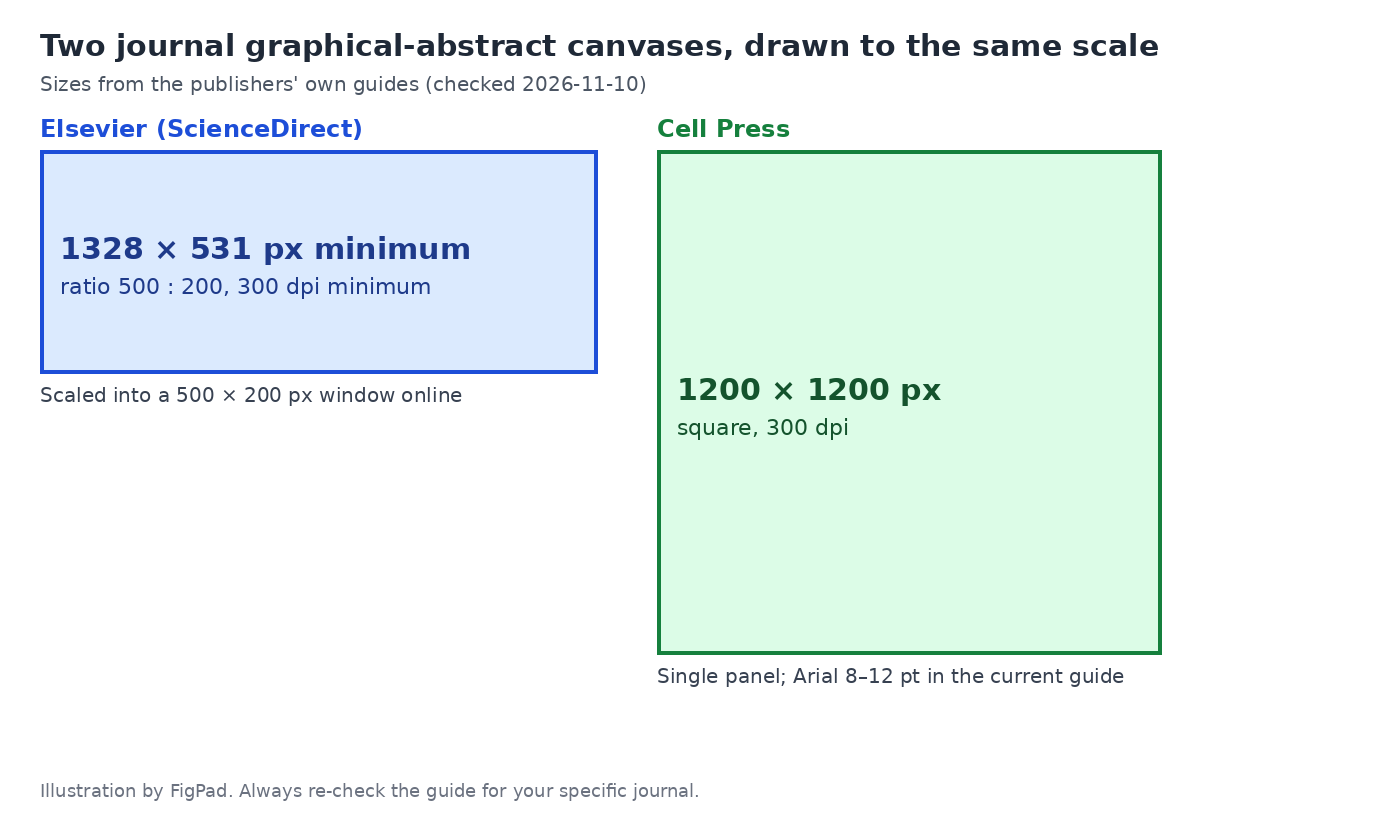
Journals within one publisher can add their own rules, so a journal-specific page always beats a publisher default. For a quick overview of what each size looks like, see the graphical abstract template page.
Step 2: Choose the one message
A graphical abstract is not a shrunken Figure 1. Cell Press's guide says it should "highlight one process or make one point clear" and be "distinct from any model figures or diagrams in the paper." Elsevier says readers should be able to take in the take-home message at a single glance.
Write that message as one sentence before you touch a tool, using the pattern "[Input] → [what we did] → [what we found]." For example: "Compound X blocks pathway Y in cultured cells, and cell growth stops." If your sentence needs the word "and" three times, you have three graphical abstracts.
Step 3: Sketch the flow on paper or a whiteboard
Both publishers ask for a clear start and a clear end, reading left to right or top to bottom. Draw three to five boxes with arrows, with one icon or cell type per box, and write only the labels you cannot do without. Do this by hand first. It takes ten minutes and prevents most of the clutter you would otherwise have to delete later.
Sketch checklist:
- One reading direction, no loops or branching unless the message is a cycle.
- One focal element, the result, drawn bigger than the others.
- Context cues where they matter. Cell Press asks for a visual indication of biological context such as tissue, cell type or species.
- No data plots, tables or numeric results. Cell Press says outright that its graphical abstracts should not include data items of any type.
Step 4: Collect elements you have the right to use
Elsevier asks for permission for any third-party material, and Cell Press says content must be original or from a licensed source you may use commercially. In practice:
- Draw your own shapes and icons, or use assets whose licence covers journal publication.
- Do not paste panels from another paper, even one of yours, unless the copyright holder allows it.
- Keep a list of every asset and its licence. If an editor asks, you can answer in a minute.
Step 5: Build the first version, and check your tool against the AI rules
Build it in whichever tool you can edit freely: PowerPoint, Illustrator, Inkscape, BioRender, or an AI scientific figure tool. The rule that trips people up here is the AI one. Elsevier states that generative AI or AI-assisted tools used for graphical abstracts must align with its generative AI policies for journals. The Cell Press guide says general-purpose generative AI tools may not be used to create graphical abstracts, while generative AI in dedicated scientific illustration tools is allowed. We cover how publishers draw that line in Can You Use AI-Generated Images in a Paper? 2026 Journal Policies Compared.
Neither publisher publishes a list of approved tools, so if you are unsure whether the tool you picked counts as "dedicated," ask the journal's editorial office before you submit. Whatever you choose, keep the prompt, the tool name and version, and the editable source file.
If you want an AI-assisted start, FigPad's graphical abstract generator turns a text description, a sketch or a reference image into a first draft. You then edit it on a canvas and export layered SVG or editable PPTX. Per the live pricing page, every new account gets free credits with no credit card, and figures come with a publication authorization and a verifiable certificate. Check the pricing page for current credit costs. For a side-by-side look at the alternatives, read 8 AI Graphical Abstract Generators Compared (2026).
Step 6: Simplify until it works at thumbnail size
Most graphical abstracts fail at this step. Elsevier shows yours in a window 200 pixels high in the table of contents, so test it at that size. Then:
- Cut text. Keep only labels a reader cannot infer from the picture. Use sentence fragments, not sentences.
- Raise the type size until the smallest label is readable at thumbnail size. Use the fonts the journal lists.
- Limit colour. Cell Press recommends colour to direct attention but warns against heavy, saturated primaries, and says to avoid red/green and red/black comparisons because of colour blindness.
- Remove decoration. Anything that does not carry the message is clutter.
- Fix the alignment. Equal gaps, one arrow style, one icon style.
Ask a colleague outside your field to explain it back to you in ten seconds. If they cannot, the message is not in the picture yet.
Step 7: Export to spec, disclose AI use, and keep the source
Export last, and export to the guide's numbers. Using the two guides above:
| Elsevier | Cell Press | |
|---|---|---|
| Shape | Wide, 500 : 200 (2.5 : 1) | Square, single panel |
| Size | At least 1328 × 531 px (larger files keep the ratio) | 1200 × 1200 px |
| Resolution | At least 300 dpi | 300 dpi |
| File types | TIFF, EPS, PDF or MS Office (preferred) | TIFF, PDF or JPG |
| Fonts | Times, Arial, Courier or Symbol | Arial, 8–12 pt |
| Text rules | All text inside the image; no heading or synopsis | Use text sparingly; no data items |
| AI | Must follow Elsevier's generative AI policies for journals | Follows Elsevier's policy; general-purpose generative AI may not create graphical abstracts |
Source: each publisher's guide, read 2026-11-10. Verify against your own journal before submitting.
Then do three small things:
- Open the exported file at 100% and at thumbnail size. Check that no label was clipped.
- Disclose AI use where your journal asks, usually in the figure caption and the manuscript's AI declaration. The how-to, with wording by publisher, is in our policy guide linked in Step 5.
- Keep the editable source. A reviewer or editor who asks you to change one label should not force a redraw. With layered SVG, the text stays text, so a fix takes minutes. See how to edit labels in an AI-generated scientific figure and Layered SVG for scientific figures.
For more on how graphical abstract files are checked at each publisher, see Elsevier Artwork Requirements in 2026 and Cell Press Figure Guidelines in 2026.
FAQ
Do I need a graphical abstract for every paper?
Not always. Elsevier describes graphical abstracts as something journals are "increasingly requesting", and the requirement depends on the journal, so check its guide for authors. When one is optional, Elsevier notes it is displayed in search result lists, contents lists and the article on ScienceDirect.
Can I reuse Figure 1 as my graphical abstract?
Elsevier says some authors use a concluding figure from the article, but many create a dedicated one. Cell Press says its graphical abstract should be distinct from model figures in the paper. A dedicated design is the safer choice.
Can I include data plots?
Cell Press says no data items of any type. Elsevier's page does not give a blanket rule, so follow your journal's guide. In either case a plot rarely reads at thumbnail size.
What happens if my image is the wrong size?
Cell Press's own crosstalk blog says that if your dimensions do not match its 1200-pixel square, the canvas may be extended to fit the template. Elsevier scales your image into a 500 × 200 pixel window. A wrong aspect ratio therefore wastes space or shrinks your type.
Key takeaways
- Start with the journal spec: size, resolution, file type, fonts and AI rule. Elsevier and Cell Press differ on all of them.
- One message per graphical abstract, shown as a single left-to-right or top-to-bottom flow.
- Use only original or licensed elements, and keep a list.
- Check that your tool fits the journal's AI policy before you build, and keep prompts, versions and an editable source file.
- Test at thumbnail size, cut text, and export to the exact spec last.
Requirements change. Every number above comes from a publisher page we opened or searched on 2026-11-10. Check your target journal's guide the week you submit.
