
Whether you can edit a label in an AI-generated figure is decided by the file you have, not the software you own. If the label is live SVG or PPTX text, the fix is a double-click and ten seconds. If it is outlined type or auto-traced paths, nothing turns it back into text — you retype it and match the font by eye. If it is a flat PNG, you have no label at all, only pixels arranged in the shape of one. Journal requirements are written for the first case: as of September 2026 Nature asks for "editable, unflattened vector artwork," tells authors not to rasterize or convert text to outlines, and specifies sans-serif lettering — Helvetica or Arial — at 5–7 pt, the same font throughout every figure in the paper. Here is how to do the edit in each case, and how to tell which case you are in.
Step 0: the thirty-second triage that decides everything
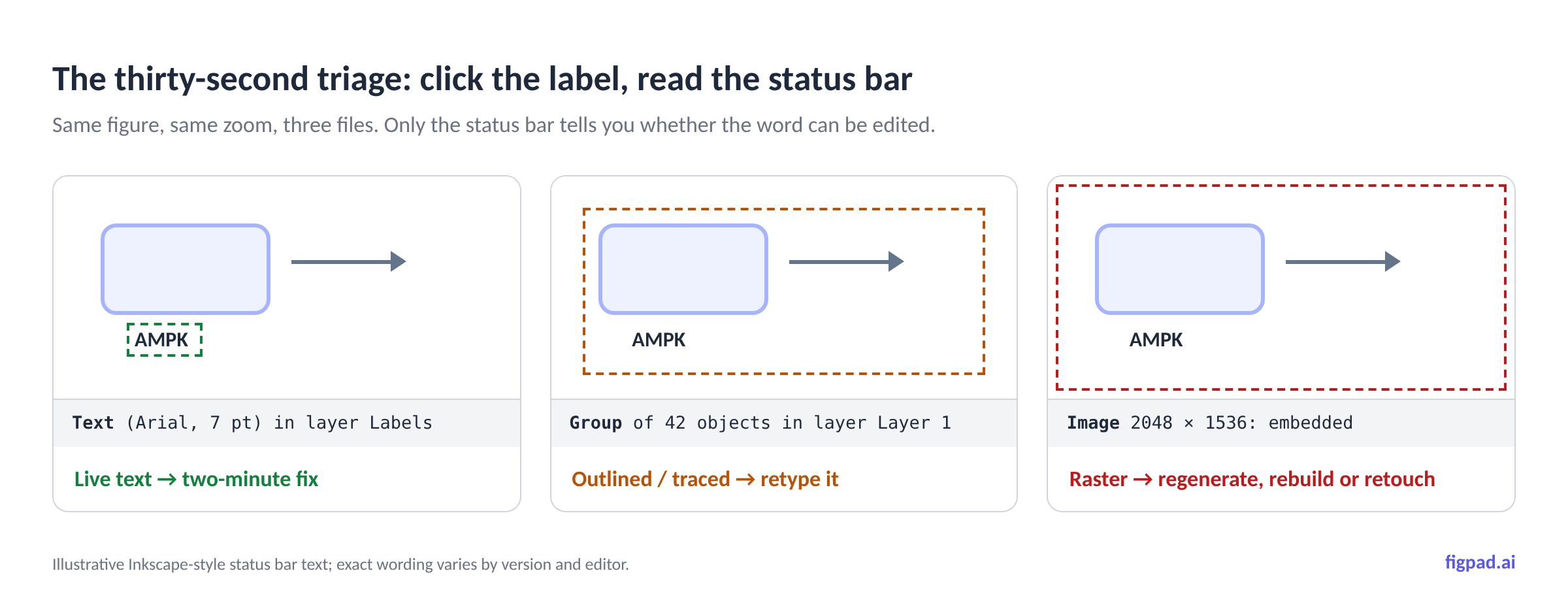
Before opening anything, find out what your labels are made of. Open the file in Inkscape (free) or Illustrator, click once on a label, and read what the status bar or Layers panel tells you:
- "Text" with a font name attached → live text. You are in the easy case. Skip to the next section.
- "Path" or "Group of N objects" → the label was outlined or auto-traced. The word "mitochondrion" is now forty-odd unlabelled splines.
- "Image" / one item covering the whole canvas → it is a raster, regardless of the file extension. An SVG can legally contain nothing but an embedded PNG, and plenty do.
In PowerPoint the equivalent test is: insert the file, right-click, choose Convert to Shape, then click a label and try to type. If a cursor appears, it is text. If you get a selection handle and nothing else, it is a shape.
Do this test before you promise a co-author the revision will be quick. The three cases differ by about two orders of magnitude in effort, and nothing on screen distinguishes them — all three look identical at 100% zoom.
Case 1: the label is live text — the two-minute fix
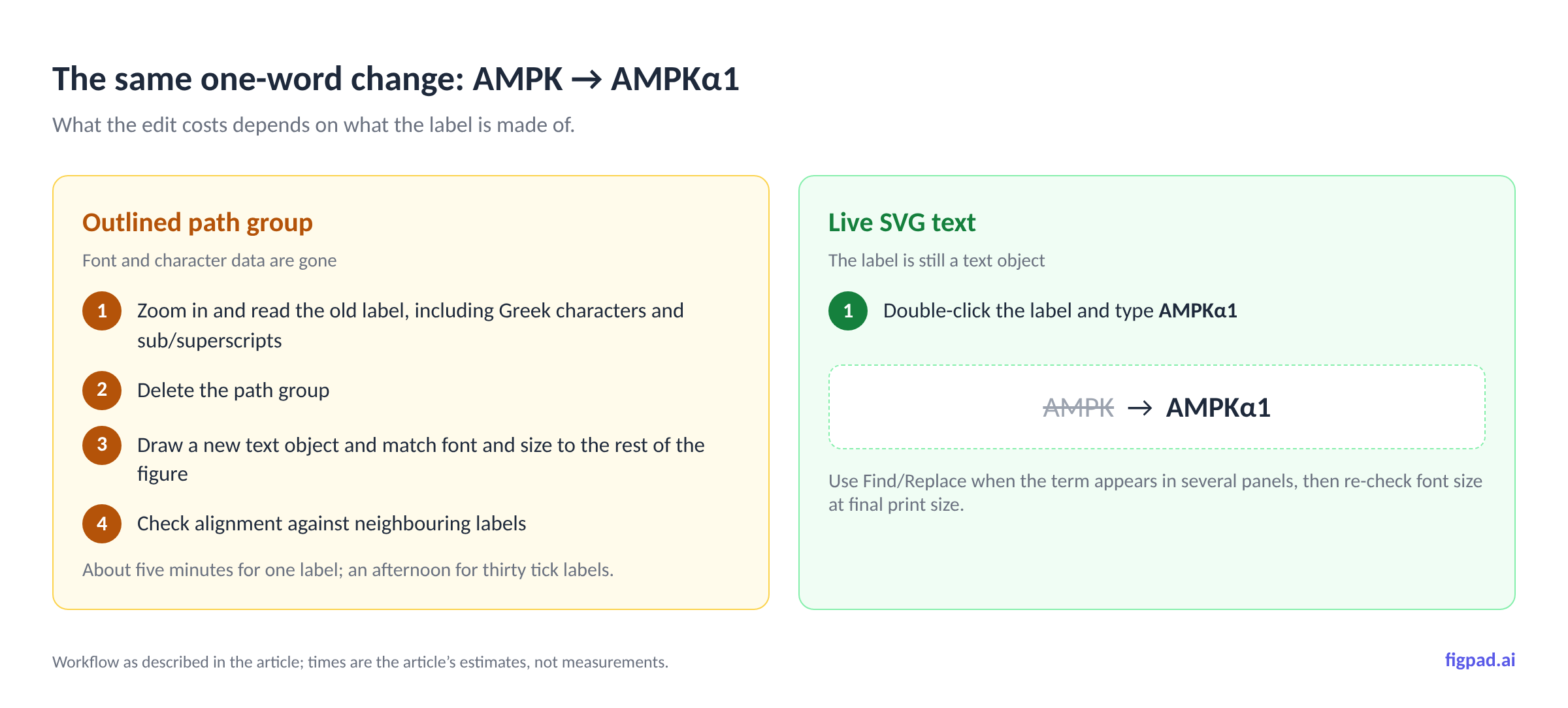
In Inkscape. Press T for the Text tool, click into the label, edit it like any text field. Then open Text ▸ Text and Font to set the typeface and size explicitly rather than trusting what you inherited: Arial or Helvetica, 5–7 pt at final print size for Nature-family journals, 8 pt bold for panel letters. Use Edit ▸ Find/Replace with "Search in text" enabled when the same term appears across several panels — changing AMPK to AMPKα1 in nine places by hand is how you end up with eight of them changed.
In Illustrator. The Type tool works the same way, and Edit ▸ Find and Replace handles the repeat case. Save your working copy as .ai or SVG, not as flattened PDF.
In PowerPoint. This is the underrated route, because everyone in your lab already has it. Insert the SVG, right-click, Convert to Shape, then ungroup — complex figures may need two or three passes — and the labels become editable text boxes you can retype and restyle. A PPTX export from a figure tool skips the conversion step entirely: the objects arrive already editable.
One habit worth building regardless of tool: after any label edit, re-check stroke weights and font sizes at final size, not at screen size. If you also rescaled the figure to fit a single column, your 7 pt type may now be 4 pt — below Nature's 5 pt floor — and your 0.5 pt arrows may have drifted under the 0.25 pt threshold where lines start vanishing in print.
Case 2: the label is outlined or auto-traced — you are retyping, not editing
This is the case people lose a day to, because the file has an .svg extension and everything looks vector.
Once type has been converted to outlines, the font and character data are gone. Illustrator's Retype feature can identify a likely font from outlines or even from a raster, which is genuinely useful, but it does not make the outlines editable again; third-party plugins that claim to reverse outlining still require the original font installed on your machine. The honest workflow is:
- Zoom in and read the old label carefully — including sub/superscripts and Greek characters, which are the ones people get wrong when retyping.
- Delete the path group.
- Draw a new text object, set it in the same font and size as the rest of the figure, and position it.
- Check alignment against the neighbouring labels, because the deleted group's optical centre is rarely where a text box's baseline lands.
For one label this takes five minutes. For a figure with thirty tick labels it takes an afternoon, which is the real argument for never letting your master copy get to this state.
Auto-tracing a flat image produces the same problem with extra steps. A tracer sees dark pixels, not letterforms; it returns a welded group of splines that scales cleanly and cannot be typed into. Vectorizing is a recovery operation, not a time machine — worth doing when it is the only path forward, never worth planning around.
Case 3: all you have is a PNG — three options, honestly ranked
Option A: regenerate with a tool that keeps structure. Best outcome if you are early enough in the process. The catch is that re-prompting a generative model for "the same figure but with AMPKα1" does not return the same figure with one word changed — generation is not deterministic, so you get a different figure and lose the version your co-authors already approved. Regenerate when you are still exploring, not after sign-off.
Option B: vectorize, then retype the labels. Run the raster through a vectorizer, accept that text comes back as paths, and rebuild the labels as real text on top. You end up with a structured file you can keep editing. It is tedious once and cheap forever after.
Option C: retouch the pixels. Cover the old word, retype over it in a matched font, hope nobody zooms in. For a schematic in a lab-meeting slide this is fine. For a submitted figure it is a bad idea, and for anything containing experimental data it is a serious one: Nature's image integrity policy states that "the use of touch-up tools, such as cloning and healing tools in Photoshop, or any feature that deliberately obscures manipulations, is unacceptable," and editors screen images with manipulation-detection software. Annotating over a micrograph is normal; repainting regions of it is not. Keep your label edits in a separate object layer over the image data, never in it.
Five traps specific to scientific labels
Greek letters and sub/superscripts. TGF-β1 retyped as TGF-B1 will survive your own proofreading and get caught at proof stage, or worse, not at all. Copy-paste the character rather than typing an approximation, and use real sub/superscript formatting instead of shrunk-and-raised text.
Font substitution on someone else's machine. An SVG stores a font name, not the font. Open it on a laptop without that font and the renderer silently swaps in something else, which changes the metrics and can push a label out of its box — a change you will not notice because it still looks like a label. Before sending a working file to a co-author, agree on one font family. Arial and Helvetica are the safe choices precisely because they are everywhere.
Text that came through a PDF is kerned character-by-character. Figures round-tripped through PDF or EPS often arrive with every letter positioned individually, or with all nine tick labels fused into one text object. Both make editing miserable. The free Scientific Inkscape extensions (by David Burghoff at UT Austin; latest release v1.4.25, June 2026) include a Flattener whose text fixes do exactly this job: split distant text, merge nearby text, remove manual kerning, reconstruct subscripts and superscripts as native SVG, and substitute a backup font for missing ones. Run it first on any imported figure.
Consistency across the whole paper, not just this panel. Nature asks for the same font throughout all figures in a paper. After a round of edits, figure 3 is Arial 7 pt and figure 5 is Helvetica 6.5 pt because you fixed them on different days. Scientific Inkscape's Homogenizer sets uniform fonts, font sizes and stroke widths across a selection; otherwise, check it manually before you submit.
Labels that live on top of data. Where a label sits over a micrograph or heatmap, keep it as a separate object. It stays editable, it stays honest, and you can move it without touching a pixel of the underlying image.
Method comparison, as of September 2026
| Your file | Change one word | Change it in nine panels | Restyle all type to Arial 7 pt | Risk |
|---|---|---|---|---|
| Layered SVG (live text) | Double-click, type | Find/Replace | Select all text, set font | None |
| PPTX (editable objects) | Click, type | Manual per slide object | Select all, set font | Font substitution across machines |
Outlined SVG / .ai |
Retype + match font | Retype nine times | Impossible — no type exists | Mismatched glyphs, drifting alignment |
| Auto-traced SVG | Retype over paths | Retype nine times | Impossible | Same, plus spline artefacts |
| Flat PNG | Retouch or regenerate | Regenerate | Impossible | Integrity flags on data images |
| PDF/EPS import | Usually editable after de-kerning | Find/Replace after Flattener | Homogenizer | Clumped or per-character text |
Behaviour of file structures, not vendor claims, checked against Inkscape 1.4, Illustrator and PowerPoint documentation as of September 2026. Tool behaviour changes; we re-check monthly.
How FigPad fits
FigPad's whole design premise is that the label edit is the part that matters, so editing happens on the canvas rather than in a re-prompt. You generate from a prompt, sketch or reference image, then click a label and change it — and as of November 2026, editing elements on the canvas costs no credits at all. A generation costs 2 credits and a text correction costs 2; exporting an editable SVG costs 4, with re-exports of the same version free, so a full generate–revise–export loop lands around 16 credits. There is no per-figure publication fee: figures on free and paid plans come with publication rights and a free, verifiable Publication Authorization Certificate. Plans start at $12/month billed yearly; Plus is $20/month billed yearly or $29 month-to-month, Pro is $29/month billed yearly or $49 month-to-month, and one-time credit packs start at $12 for 95 credits that never expire (prices checked 2026-11-02). Layered SVG export is available on every plan, including free, where "layered" means text is still text and arrows are still arrows, not a traced spline group. PPTX export drops the figure into a slide as editable objects — the format that saves you when a committee member wants one word changed an hour before your talk. Prices may change; we re-check monthly.
If you are starting a figure from scratch, the AI Scientific Figure Generator page walks through that generate-then-edit loop. If you are arriving here with a flat image you already have and need to get labels back, start from the Scientific Figure Creator and run the vectorizer — with the caveat from Case 3 that recovery is never as clean as having kept the structure. For single-panel work with fixed journal dimensions, the Graphical Abstract Generator is the closer fit.
One thing we will not soften: editability is not permission. Some journals ask authors to disclose AI-assisted figure creation, so check your target journal's policy before submitting, and never present a generated image as primary experimental data.
When hand-editing in Illustrator or Inkscape is still the right call
Plenty of the time, you should not be reaching for a generator at all.
When the figure came out of your analysis code. A matplotlib or MATLAB figure should be fixed at the source. Change the label in the script, re-run, and your figure and your data stay in sync. Editing the exported SVG instead creates a version that no longer matches the code that made it.
When you are assembling a multi-panel figure from many sources. Inkscape plus Scientific Inkscape's Scaler and Homogenizer is, honestly, the best tooling that exists for this job, and it is free.
When the figure is nearly final and needs one surgical nudge. Open the master, move the label two millimetres, save. No tool should be involved.
When your lab has a template and a house style already working. If your existing .ai masters are maintained and consistent, keep them. The cost of switching tooling mid-paper is higher than the cost of one more manual edit.
Key Takeaways
- Triage before you edit. Click a label: text, path, or image. Those three answers differ by two orders of magnitude in effort, and they look identical on screen.
- Outlined type is unrecoverable. Illustrator's Retype can identify the font; nothing converts outlines back into editable type. You retype and match by eye.
- Live text edits are a double-click — in Inkscape, Illustrator or PowerPoint after Convert to Shape. Use Find/Replace when the same term repeats across panels.
- Re-check sizes at final print size after every edit. Nature wants 5–7 pt sans-serif lettering, 8 pt bold panel labels, and line weights between 0.25 and 1 pt at final size.
- Never retouch pixels on data images. Nature Portfolio calls cloning and healing tools unacceptable and screens for manipulation; keep labels as separate objects above the image, not painted into it.
