

Leaving BioRender is not a software decision. It is a licensing and export decision, and the order of operations matters more than the tool you move to. As of September 2026, BioRender's own documentation states three things that should govern your entire migration: publication rights are determined by your account status at the time of export, illustrations beyond a limited number become "Preview-only" after you downgrade, and there is no vector export option — PNG, JPEG, and (on Premium) PDF only. That means every figure you might ever submit, revise, or resubmit has to leave the account before the billing cycle ends, with the publication license attached, and it leaves as a raster file. This checklist walks through the sequence, in the order a lab should actually execute it.
Why this is a licensing problem before it's a software problem
Most "how to switch tools" articles start with feature comparisons. For BioRender, that is the wrong starting point, because the thing that can actually hurt you is not the feature gap — it is a date.
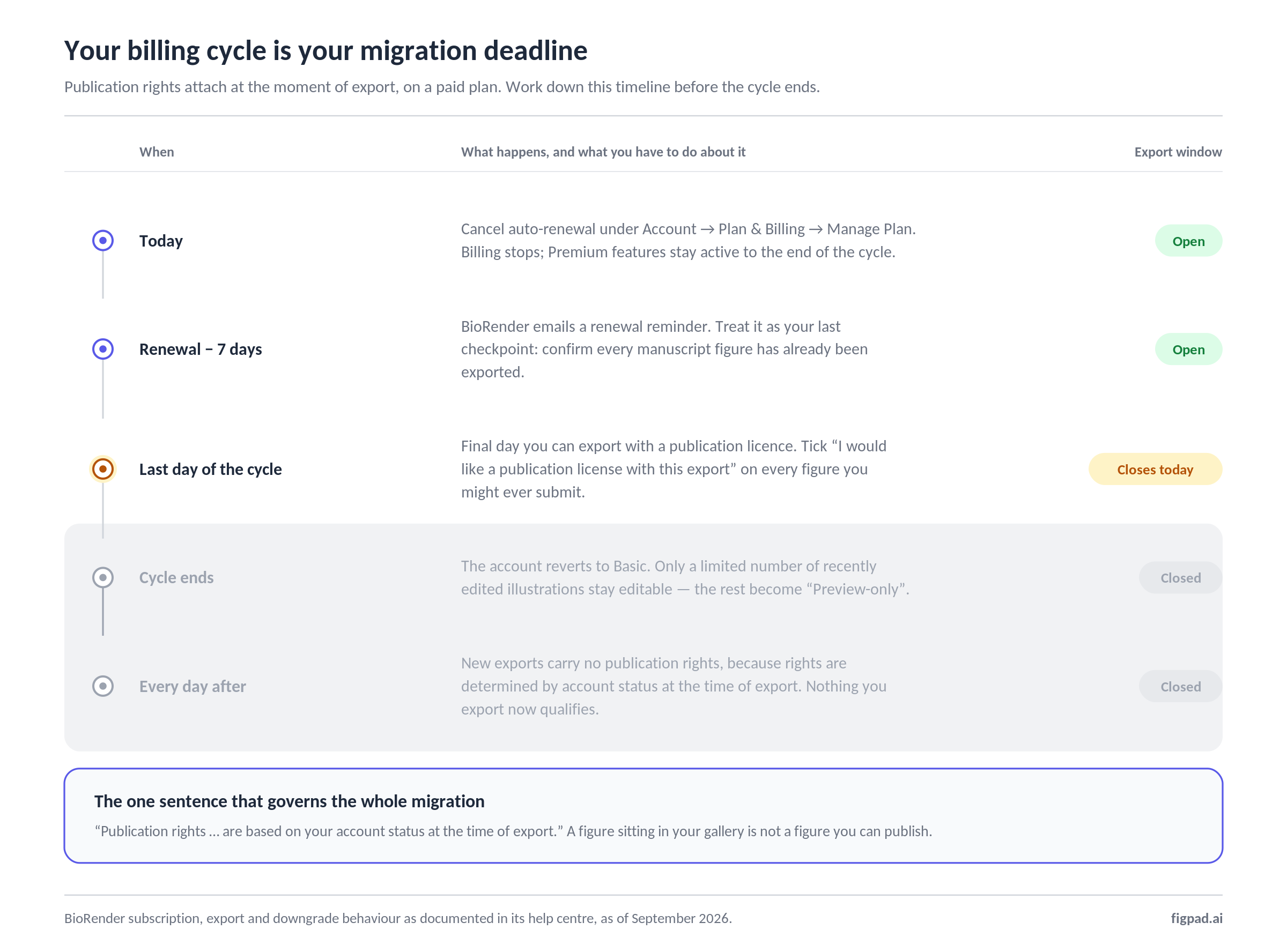
BioRender's help documentation is explicit: "Publication rights for BioRender illustrations are based on your account status at the time of export. If you exported a figure while on a paid premium license (not during the free trial period), you retain the right to use it in publications even after downgrading. However, publication rights do not apply to figures exported after your plan has been downgraded."
Read that twice if you pay the invoice. A figure sitting safely in your gallery is not a figure you can publish. Only an exported file, exported while paid, carries the right — and because licenses are generated at export time, via a box labelled "I would like a publication license with this export," a figure you exported six months ago without ticking it is not documented either.
So the first rule of migrating off BioRender is: the export deadline is your renewal date, and there is no extension.
Step 1: Find your renewal date before you touch anything
BioRender subscriptions renew automatically. Cancelling stops future billing but keeps Premium features active until the end of the current billing period, and BioRender sends an email reminder seven days before renewal. On Lab and Team plans, cancellation is likewise effective only at the end of the billing cycle — there are no immediate mid-cycle cancellations.
Practically, this gives you two workable plans:
Plan A (recommended): cancel auto-renewal now, migrate during the paid tail. You keep full export capability for the remainder of the cycle and you cannot be surprised by a charge. Cancellation lives under your name → Account → Plan & Billing → Manage Plan.
Plan B: migrate first, cancel after. Safer against a missed figure, more expensive if you drift past the renewal date. BioRender notes that if cancellation happens after the renewal date, the charge may still process, and refunds are reviewed case by case.
If you are on a monthly plan and just need breathing room, there is a third option that is not a migration at all: BioRender lets monthly subscribers skip a month, up to three times.
Put the renewal date in the lab calendar with two names attached. Migrations fail when they are one postdoc's side project.
Step 2: Export everything publishable — with the license box ticked
This is the irreversible step, so do it first and do it exhaustively.
Build a list from three sources, not one: your BioRender gallery, your manuscripts currently under review, and your manuscripts in preparation. Anything in the second and third buckets can still come back with reviewer comments, and anything that comes back needs a valid publication license on the file you submit.
For each figure:
- Open it and click Export (or use the three-dot menu in the gallery).
- Choose your format and resolution. Premium gives you 600 DPI; free accounts cap at 300 DPI.
- Tick "I would like a publication license with this export."
- Save both the image file and the generated license/citation together.
Export more generously than feels necessary. A 600 DPI PNG and a PDF of the same figure cost nothing but disk space, and you cannot come back for them later. Export the figures you think are dead, too — the reviewer who asks you to restore a panel you removed exists.
Step 3: Know exactly what "your figures are never deleted" means
BioRender is accurate when it says downgrading does not delete your illustrations. It is also a narrower promise than it sounds.
After you revert to the free Basic plan, only a limited number of your most recently edited illustrations stay open. Everything beyond that limit becomes "Preview-only": stored in your account, visible, and neither editable nor exportable unless you re-subscribe. You can free a slot by deleting a newer illustration, which is a trade most labs do not want to make. If you used the Graphing add-on, the ceiling is tighter still — one recent Graphing file with up to three datasets.
The useful way to think about this: after downgrade, your BioRender account becomes an archive you can look at, not a library you can work from. Plan accordingly. If a figure will ever need another edit inside BioRender, that edit has to happen while you are still paying.
Step 4: If you are on a Lab plan, migrate the lab — not just yourself
Individual migrations are simple. Lab migrations fail on the people who were not in the room.
When a Lab or Team admin cancels, colleagues without their own individual subscriptions lose publication-license export and shared-folder capabilities — editing others' files, adding collaborators, renaming folders, moving files. Users who do hold active individual plans keep full access to their own files.
So before the admin clicks cancel:
- Circulate the export deadline to every member, including alumni who still have access. Departing students are the single most common source of "we can't find the source file for Figure 3."
- Assign an owner per manuscript, not per person. Figures belong to papers, and papers outlive lab members.
- Empty the shared folders deliberately. Once shared-folder capability lapses, the reorganisation you were planning becomes impossible.
- Check for overlap if you are moving to an institutional license. BioRender asks labs transitioning to Institutional or Enterprise plans to contact support so the subscriptions do not collide.
Step 5: Decide what happens to figures you will have to edit again
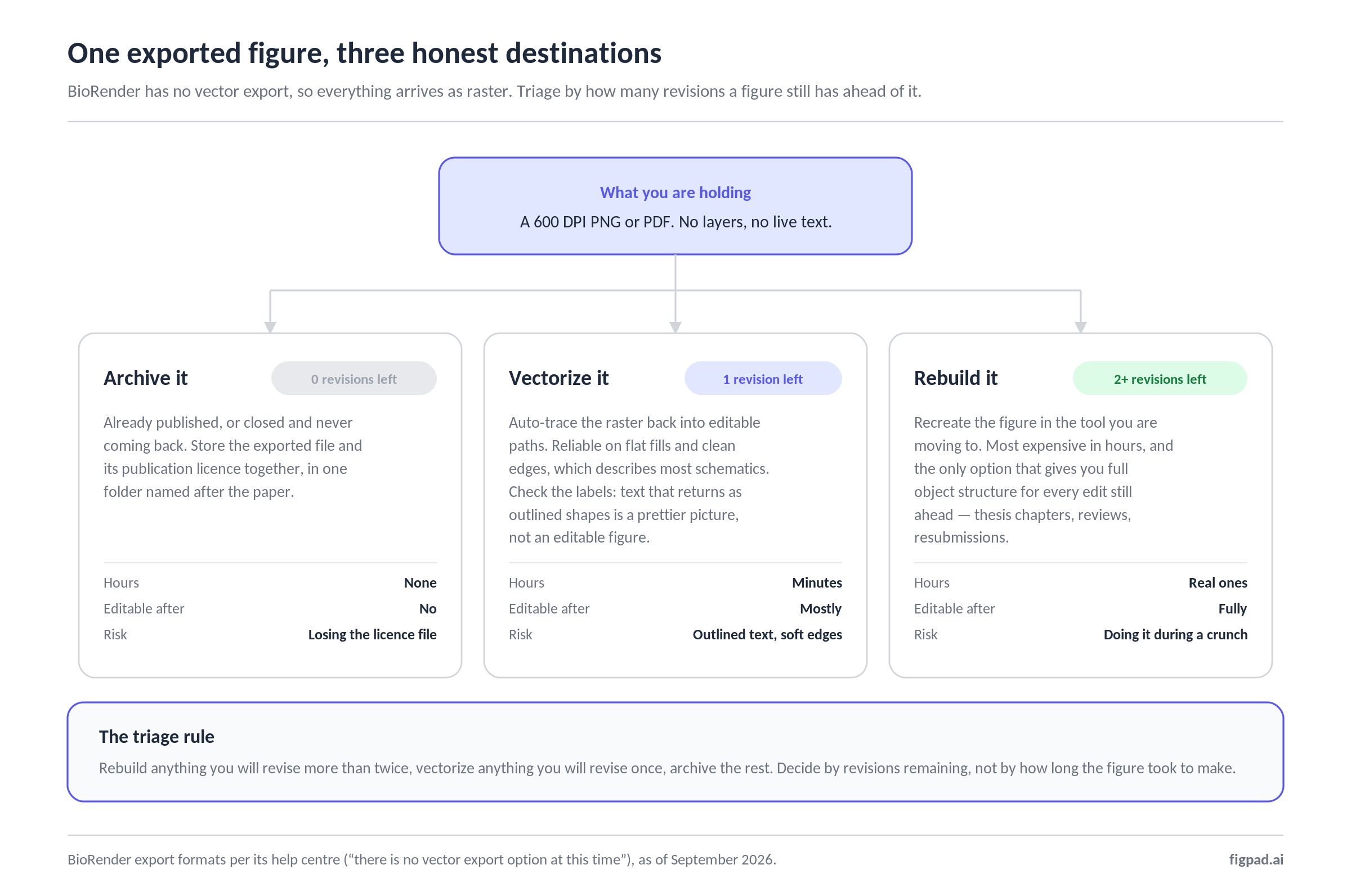
Here is the structural constraint, stated plainly and without spin: BioRender does not offer vector export for illustrations. Its documentation says so directly — "There is no vector export option at this time." You can export PNG, JPEG, and PDF on Premium, and PPTX on select paid plans, though BioRender notes that PPTX exported without the PowerPoint add-in may have limited editability for some elements.
This is fine while you are inside BioRender, where the editor holds the object structure. It becomes the migration problem the moment you leave, because a 600 DPI PNG of a signalling pathway is a picture of a figure, not a figure.
You have three honest options for the figures that still have revision ahead of them:
Accept the raster. Correct for anything already published and closed. Archive it and move on.
Rebuild in the new tool. Highest fidelity to your future needs, highest cost in hours. Reserve it for the figures with the longest remaining life — the ones going into a thesis chapter, a review, or a resubmission.
Vectorize the export. Convert the PNG back into editable vector paths. This is genuinely useful for diagrams with clean edges and flat fills, which describes most schematic figures. Auto-tracing struggles with gradients, soft shadows, and dense small type, so check the text specifically: if the labels come back as outlined shapes instead of live text, you have bought a prettier picture, not an editable figure.
A reasonable triage rule: rebuild anything you will revise more than twice, vectorize anything you will revise once, and archive the rest.
Step 6: Keep citing BioRender where you are required to
Cancelling a subscription does not cancel an attribution obligation.
BioRender's Terms of Service treat icons, templates, and library assets as BioRender Content that remains BioRender's property even inside your figure, and proper citation is required when it appears in published work. Published papers keep their citations. Figures you exported under a paid plan keep theirs. Do not quietly strip "Created with BioRender.com" from a figure because you have moved on.
One nuance worth knowing, and worth checking against your own files: BioRender states that if you built a figure solely from your own content inside the app — no library icons, no templates, no community content — a publication license is not required and citing BioRender is unnecessary. In practice that describes very few figures, but it is a real category.
The 2026 migration decision table
Verified against BioRender's help documentation and FigPad's pricing page, as of September 2026. Prices may change; we re-check monthly.
| What you need | BioRender (Premium) | BioRender (after downgrade to Basic) | An editable-export workflow (e.g. FigPad) |
|---|---|---|---|
| Raster export | PNG / JPEG up to 600 DPI | PNG / JPEG up to 300 DPI, limited files | PNG 2K (Starter) / 4K (Plus) / 8K (Pro) |
| Vector export | None — "no vector export option at this time" | None | Layered SVG (Plus / Pro) |
| PowerPoint export | PPTX on select paid plans; add-in recommended for full editing | Not available | PPTX with figures as editable slide objects |
| Publication rights | Granted at time of export, on paid plans only | Not granted for new exports | Included on all paid tiers |
| Access to old files | Full | Limited recent files; rest are "Preview-only" | Files stay in your storage tier |
| Entry price | $35/mo billed annually (Academic Individual) | $0 | $9/mo billed annually ($19 month-to-month) |
| Attribution | Citation required for BioRender Content | Citation still required for prior work | Outputs are yours; no required citation |
Two honest notes. BioRender's Basic plan is not a trap — it is a free tier doing what free tiers do, and your files genuinely are not deleted. And cheaper entry pricing is not the argument for switching. The export column is.
How FigPad fits
FigPad exists for the revision half of the figure lifecycle, which is exactly the half a migration exposes. You start from a prompt, a rough sketch, or a reference image, refine the result on a canvas where editing elements costs nothing, and export layered SVG — text that is still selectable text, arrows that are still arrows — or PPTX where the figure lands in your slides as editable objects rather than a pasted screenshot. PNG export runs 2K on Starter, 4K on Plus, and 8K on Pro. Layered SVG starts at the Plus tier.
Three points matter specifically for a lab mid-migration. Publication rights are included on every paid tier — FigPad's Terms state that "you own the outputs generated for you," with no separate publishing upgrade and no per-figure fee. Credits are priced so that revising is not a financial decision: one generation is 2 credits, a text fix is 2 credits, editing elements on the canvas is free, and exporting an editable SVG is 4 credits with re-exports of the same version free. And for the raster figures you are carrying over, the built-in vectorizer converts bitmaps into editable vector layers, which is the "Step 5, option three" path above without leaving the tool.
If you are still deciding rather than executing, the BioRender alternative breakdown walks through the method difference in detail, and the AI scientific figure generator page shows the generate-refine-export loop on a real figure. Current tier limits live on the pricing page.
One caveat we would rather state than have you discover: some journals ask authors to disclose AI-assisted figure creation. Check your target journal's policy, and never present a generated figure as primary experimental data.
When you should stay with BioRender
Some labs should finish this article and renew. Naming them honestly:
Your subfield expects the icon vocabulary. BioRender's scientifically reviewed icon library is its real strength, and a curated, community-recognised visual language is not something an AI generator replaces. If your reviewers read those conventions fluently, switching costs you comprehension.
Your institution already pays. A site license you already hold beats a cheaper tool you have to expense and justify. This is not close.
You have many figures still in active revision. Migration cost scales with figures that still need editing. A lab with fifteen live figures mid-review should wait for a quieter month.
You depend on shared folders and centralised admin across many people. Lab and Institutional plans are engineered for exactly that shape of team.
You publish open-access under CC-BY and have citation chains to maintain. If your figures are being reused and attributed downstream, continuity has real value.
Key Takeaways
- Your renewal date is your migration deadline. Publication rights attach at export, on a paid plan. Nothing exported afterwards carries them.
- Tick the publication license box on every export, including figures for papers still in review or in preparation. The license is generated at export time and cannot be retrieved later.
- "Never deleted" is not "still usable." After downgrade, only a limited number of recent illustrations stay editable; the rest become Preview-only.
- Lab plans need a lab-wide deadline. When the admin cancels, colleagues without individual plans lose publication-license export and shared-folder capability.
- Plan for raster. BioRender has no vector export, so triage each figure: archive it, vectorize it, or rebuild it — decided by how many revisions it still has ahead.
